
Claude Desktop Setup
Claude Desktop can be configured to use a third-party inference provider. With Aiberm, you can point Claude Desktop at Aiberm’s Anthropic-compatible endpoint and use your Aiberm API key.
Anthropic documents this flow in its Claude Desktop / Claude Cowork third-party platform setup guide. The feature requires a recent Claude Desktop build; older clients may not show the required Developer menu.
Prerequisites
Before you begin, make sure you have:
- The latest Claude Desktop app installed from Claude’s official download page
- An Aiberm account (Sign up)
- An Aiberm API key (Create one in Console)
Configuration
Follow these steps before signing in to Claude Desktop.
- Open the latest Claude Desktop app.
- Do not sign in yet.
- In the menu bar, open Help → Troubleshooting → Enable Developer Mode.
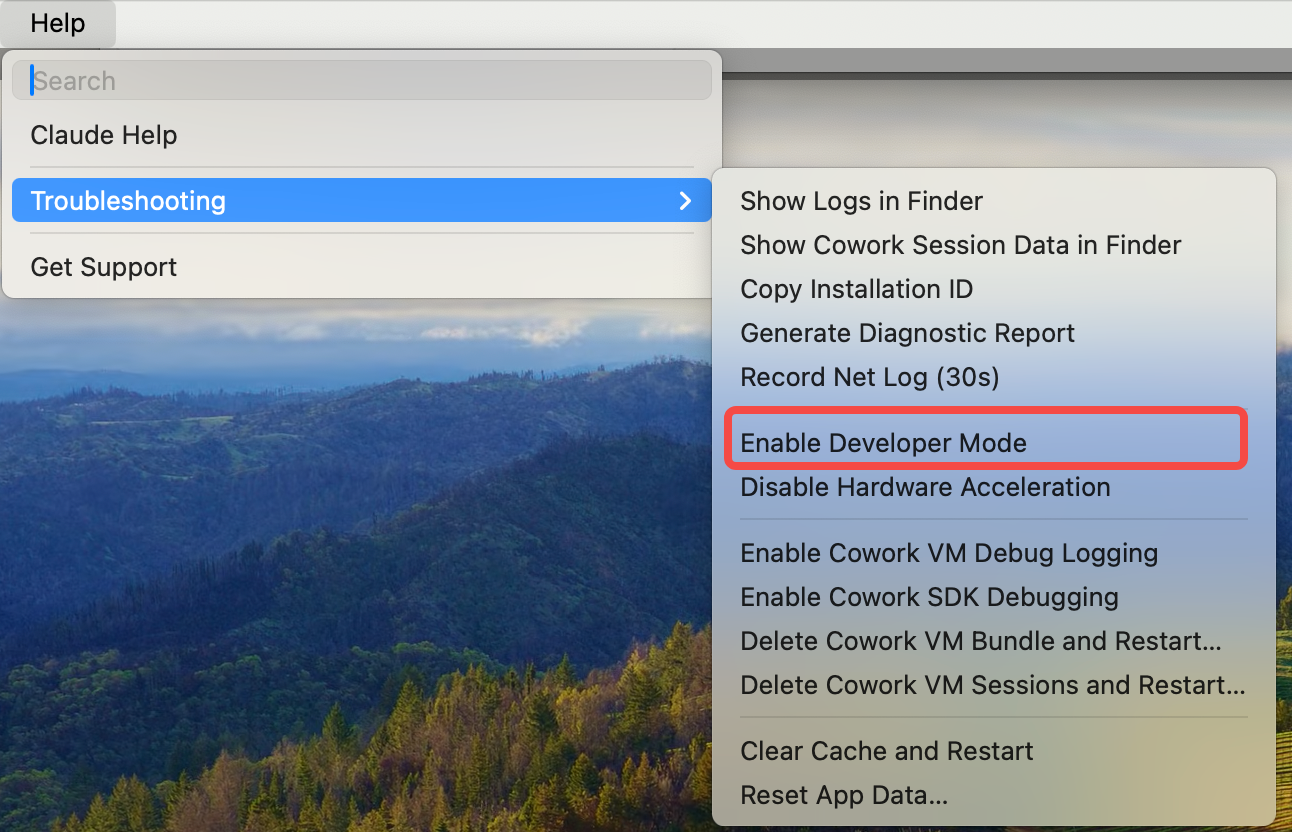
- After Developer Mode is enabled, open Developer → Configure third-party inference.
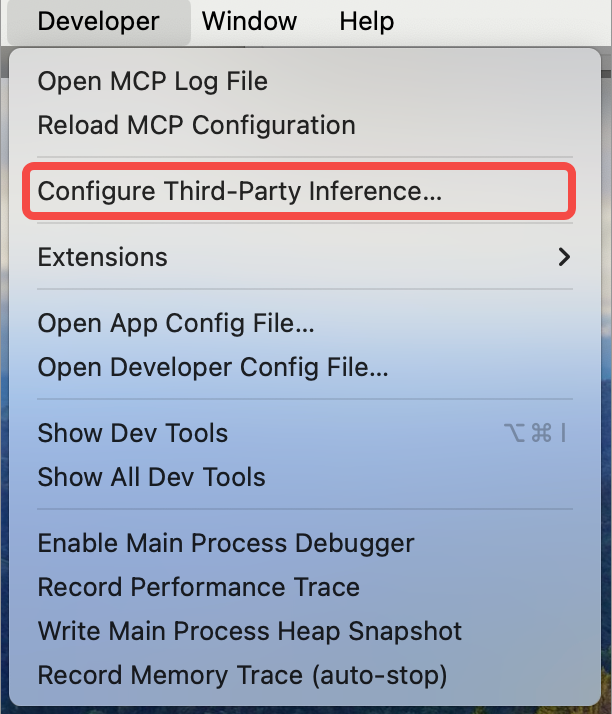
- Fill in the third-party inference settings:
| Field | Value |
|---|---|
| Base URL | https://aiberm.com |
| API Key | Your Aiberm API key, for example sk-... |
| Authentication method | Select x-api-key |
| Provider / API format | Anthropic-compatible, custom gateway, or equivalent option if shown |
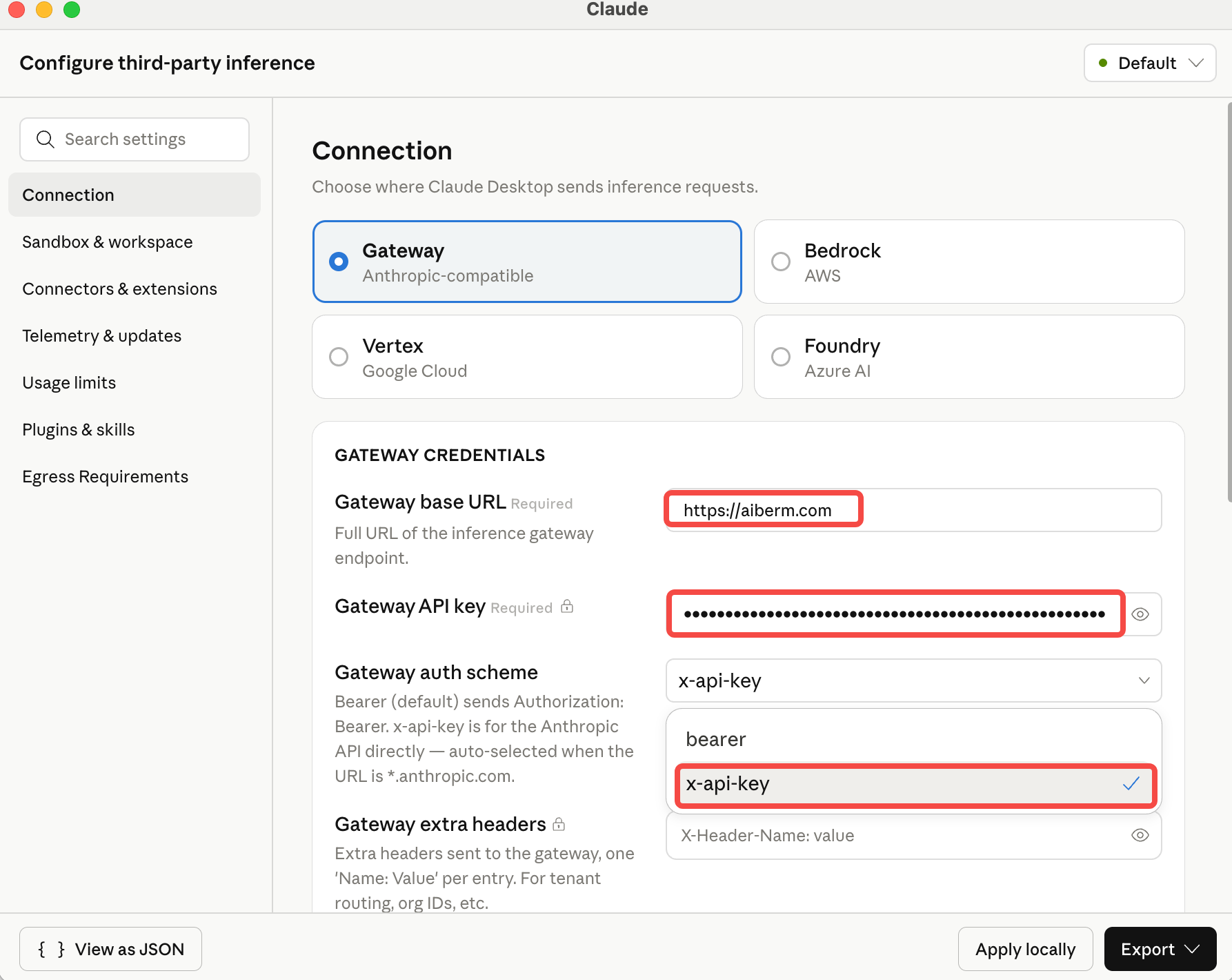
- Choose Apply locally to save the configuration on this computer.
- Continue signing in or launching Claude Desktop as prompted.
Verify It Works
After applying the local configuration:
- Restart Claude Desktop if the app asks you to.
- Start a new conversation.
- Send a short test prompt such as:
Reply with one sentence if this request is using Aiberm.If the request succeeds, Claude Desktop is using the configured Aiberm provider.
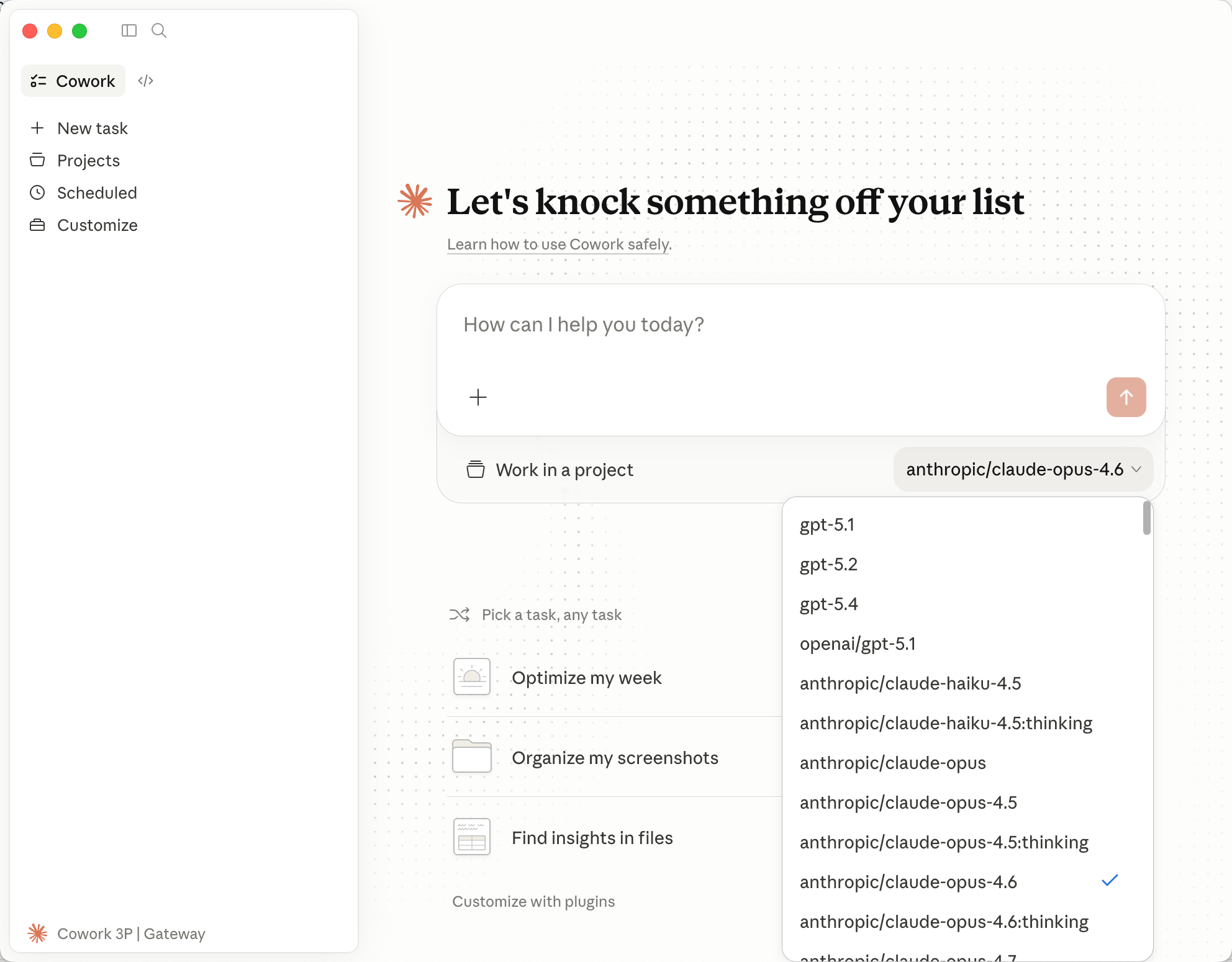
Once the provider is connected, you can switch between the models available on the Aiberm platform from Claude Desktop. This includes different Claude model variants exposed through your Aiberm account. For the current list, see Models List.
Troubleshooting
Developer menu does not appear
- Confirm you installed the latest Claude Desktop app. Older versions may not support this setup UI.
- Enable Developer Mode from Help → Troubleshooting → Enable Developer Mode.
- Fully quit and reopen Claude Desktop after enabling Developer Mode.
Third-party inference option is missing
- Make sure you are using the desktop app, not the web app.
- Try opening Claude Desktop before signing in.
- Update Claude Desktop and repeat the Developer Mode step.
Invalid API key
- Copy the full API key from Aiberm Console.
- Check for extra spaces before or after the key.
- Confirm the key starts with
sk-. - Confirm the authentication method is set to
x-api-key.
Connection or model errors
- Confirm the Base URL is exactly
https://aiberm.com. - Make sure your network can access
https://aiberm.com. - If your Claude Desktop build exposes model settings, switch to another model available on Aiberm and test again.