
DeepSeek Harness Setup
This guide shows how to run DeepSeek Harness (dsh) with Aiberm as a custom OpenAI-compatible provider. After setup, one Aiberm API key can reach Claude, GPT, Gemini, DeepSeek, Kimi, MiniMax, GLM, Grok, and the rest of the models on Aiberm.
DeepSeek Harness is in developer preview and changes quickly. This page follows the official README and Configure models guide, then maps those steps onto Aiberm.
What is DeepSeek Harness?
DeepSeek Harness is an open-source agent harness from DeepSeek AI. Everything is a plugin, composed by Cordis. The usual CLI entry is the browser UI (dsh web); the same home directory also powers one-shot headless jobs. DeepSeek also ships a desktop app that wraps the same UI.
Official project:
- Homepage: deepseek.com/en/harness
- Desktop download: deepseek.com/en/download
- Source: github.com/deepseek-ai/deepseek-harness
- Discussions: GitHub Discussions
Prerequisites
- An Aiberm account (Sign up)
- An Aiberm API key (Get your key)
- Node.js installed (required by
npx) - A terminal on macOS, Linux, or Windows
Install and start
The official install path is a one-shot npx launch. From the project directory you want the agent to work in:
npx @deepseek-ai/dsh webThe Web UI listens at http://127.0.0.1:3080 by default. The current working directory becomes the workspace root.
Useful variants:
# Another port
npx @deepseek-ai/dsh web --port 8080

# One-shot headless job (same models and credentials as the Web UI)
npx @deepseek-ai/dsh --profile headless "summarize the README"
If you already installed the CLI:
dsh web
dsh --help
dsh web --helpweb and headless profiles are created on first use under $DSH_HOME (default ~/.dsh). You do not need to clone the repository just to use Aiberm.
Configure Aiberm (Web UI, recommended)
Aiberm is not the built-in DeepSeek card, and it is not the catalog OpenAI / Anthropic provider. Those entries keep their official endpoints. Aiberm is an OpenAI-compatible gateway, so you add it as a custom provider.
Official reference: Configure models.
Step 1: Open Settings → Models
In the Web UI, open Settings → Models.
Step 2: Add a custom provider
Choose Add a custom provider and fill in:
| Field | Value |
|---|---|
| Provider ID | aiberm (lowercase, permanent — used by sessions, defaults, and the credential name) |
| Display name | Aiberm |
| Base URL | https://aiberm.com/v1 |
| API protocol | openai-completions |
| API key | your Aiberm key from Console → API Tokens |
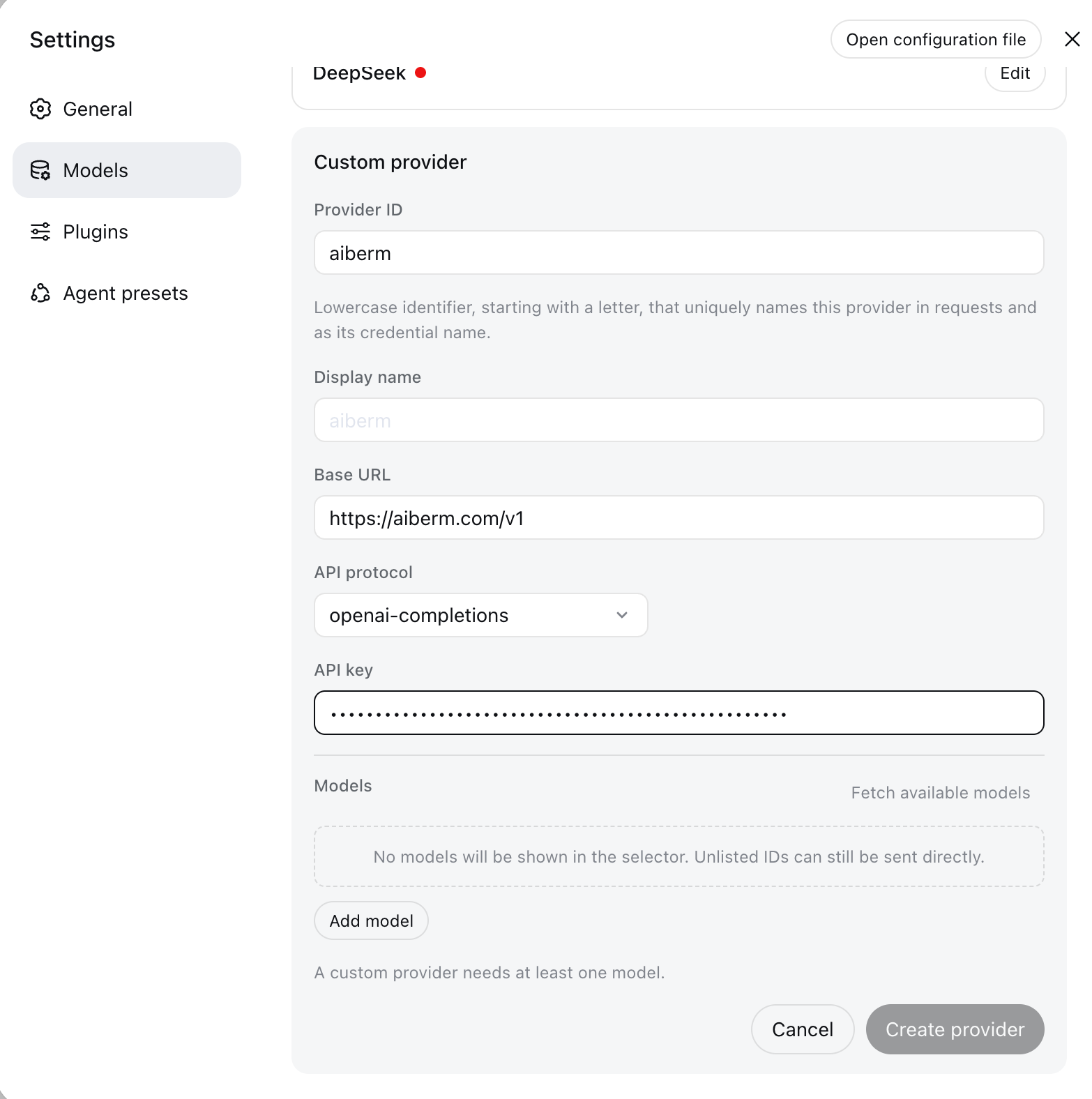
The Provider ID cannot be renamed later. Requests, saved sessions, the default model, and the stored credential all use it. To change it, add a new provider and delete the old one.
Step 3: Load or enter models
Under Model catalog, choose Fetch available models. Harness calls Aiberm’s OpenAI-compatible GET /v1/models with the key you just typed. Select the models you want, then save.
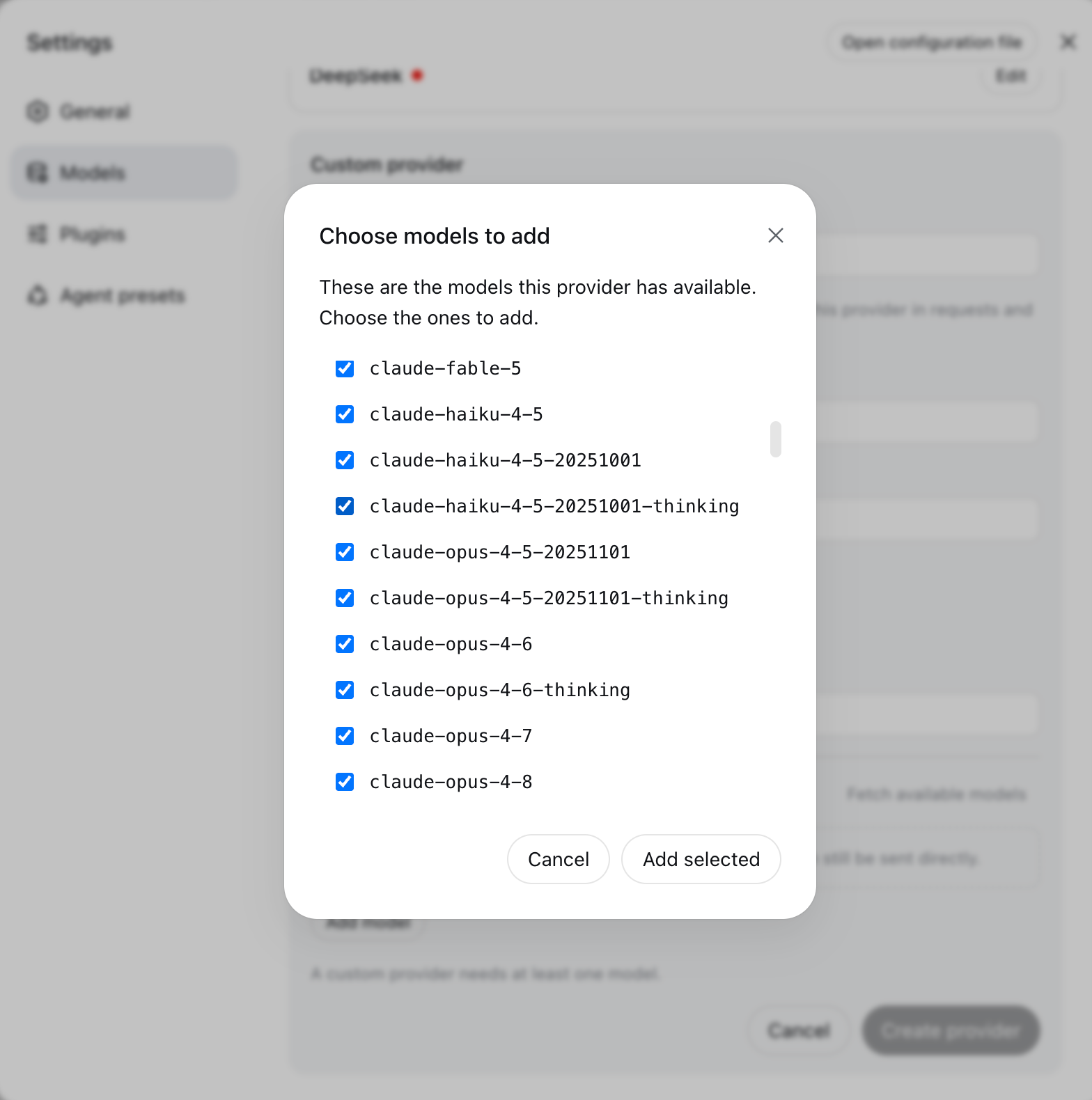
If discovery fails, enter model IDs by hand. Use the IDs from the Models List or Aiberm Pricing. Examples:
claude-sonnet-4-6claude-opus-4-6gpt-5.4google/gemini-3-flashdeepseek/deepseek-v4-progrok-4.6
The page never writes the API key into settings.yaml. The key is stored write-only in $DSH_HOME/.credentials.yaml. Settings keep only a reference such as AIBERM_API_KEY.
Step 4: Select a model
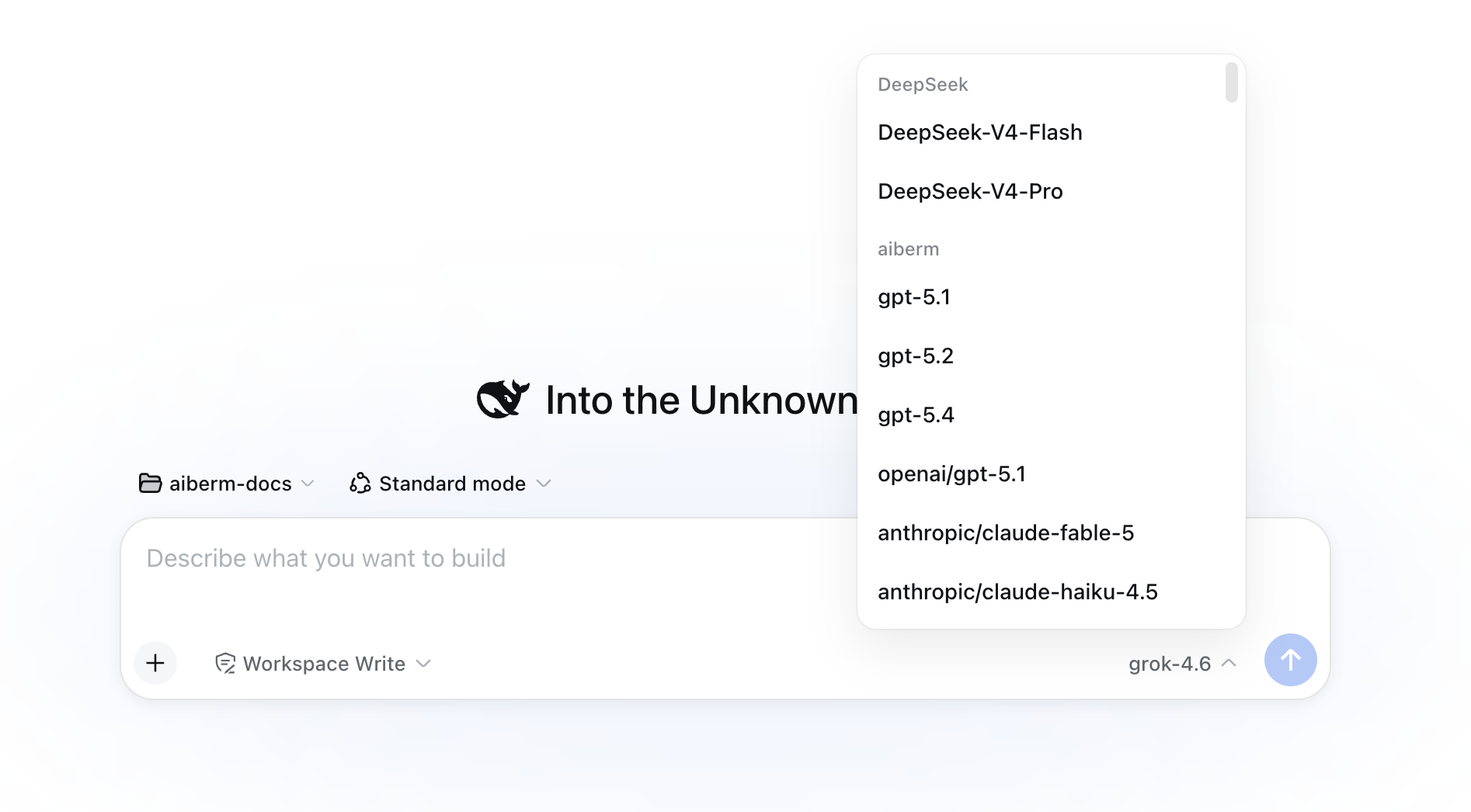
After saving, Aiberm appears in the model picker at the bottom of the composer. Choose a model — that selection also becomes the default for new sessions. A session that has already sent a request keeps the model recorded in its own log.
The picker groups built-in DeepSeek models separately from the Aiberm custom provider. Use the Aiberm group for Claude, GPT, Gemini, and the rest of the catalog.
Configure Aiberm (settings.yaml)
You can declare the same provider by editing $DSH_HOME/settings.yaml (usually ~/.dsh/settings.yaml). Do not put the API key in this file.
llm-pi-ai:
  providers:
    aiberm:
      displayName: Aiberm
      apiKeyEnv: AIBERM_API_KEY
      api: openai-completions
      baseURL: https://aiberm.com/v1
      models:
        - id: claude-sonnet-4-6
        - id: claude-opus-4-6
        - id: claude-opus-4-6-thinking
        - id: gpt-5.4
        - id: google/gemini-3-flash
        - id: deepseek/deepseek-v4-pro
        - id: grok-4.6
        - id: kimi-k2.6
        - id: minimax-m2.7

agent-default-model:
  provider: aiberm
  model: claude-sonnet-4-6
Then store the key in one of these places (first match wins at request time):
- Launch environment:
AIBERM_API_KEY=sk-... npx @deepseek-ai/dsh web $DSH_HOME/.credentials.yaml(what the Models page writes):
AIBERM_API_KEY: sk-your-aiberm-api-key- Project
.envin the launch directory, or$DSH_HOME/.env
Official credential order: process environment → $DSH_HOME/.credentials.yaml → project .env → $DSH_HOME/.env. A value written on the Models page overrides older .env keys.
On POSIX, keep .credentials.yaml at mode 600.
A custom route that is not in Harness’s shipped catalog must set api, baseURL, and a non-empty models list. models replaces the catalog for that route — every model you want in the picker must appear there. An id-only entry is enough.
Vision models
A model you type by hand is treated as text-only until you say otherwise. If you attach an image to such a model, Harness refuses the request before it is sent.
For Aiberm vision models, add input in settings.yaml:
llm-pi-ai:
  providers:
    aiberm:
      apiKeyEnv: AIBERM_API_KEY
      api: openai-completions
      baseURL: https://aiberm.com/v1
      models:
        - id: claude-sonnet-4-6
        - id: gemini-3-pro-image-preview
          input: [text, image]
        - id: gpt-image-2
          input: [text, image]
If every listed model accepts images, set the route fallback once:
defaultInput: [text, image]defaultInput is a fallback, not an override. It defaults to [text].
Verify the setup
- Open
http://127.0.0.1:3080. - Confirm the model picker lists Aiberm and your models.
- Send a short prompt such as
Hi. - Optional: list models through Aiberm directly:
curl -H "Authorization: Bearer sk-your-aiberm-api-key" \
     https://aiberm.com/v1/models
Add any extra IDs to the provider’s models list (or re-run Fetch available models) if they are missing from the picker.
Headless and CLI notes
The Web UI and dsh --profile headless share $DSH_HOME. Configure Aiberm once, then run:
npx @deepseek-ai/dsh --profile headless "list the files in this directory"Launcher flags come first; everything after them belongs to the profile:
dsh --profile web --port 8080
dsh --profile web --help
dsh --help
Troubleshooting
MISSING_CREDENTIAL
The route names AIBERM_API_KEY (or another apiKeyEnv) but no value is stored. Save the key on Settings → Models, or export the same variable in the shell that starts dsh.
UNKNOWN_MODEL
The selected model is not in this provider’s models list. Fetch models again, or add the ID by hand. Aiberm IDs change over time — confirm them on the Models List.
401 when fetching models or chatting
- Check the key at Aiberm Console.
- Base URL must be
https://aiberm.com/v1(include/v1). - Do not paste the key into
settings.yaml; put it in credentials or the environment.
Requests still go to DeepSeek or OpenAI
You configured the built-in DeepSeek card or a catalog openai / anthropic provider. Those keep official endpoints. Delete that misconfigured row and add a custom provider with ID aiberm and base URL https://aiberm.com/v1.
Image refused before sending
The model has no image modality. Add input: [text, image] for that model (see Vision models), then start a new session. An attached image stays in the old session log.
Config edits do not apply
Provider and key changes apply on the next request; you do not restart the server. An existing session keeps the model already written in its log. Start a new chat after changing the default.
Where the files live
| Path | Purpose |
|---|---|
$DSH_HOME/settings.yaml | Providers, model lists, default model (~/.dsh/settings.yaml) |
$DSH_HOME/.credentials.yaml | API keys only |
$DSH_HOME/profiles/web/ | Auto-created web profile |
Notes
- Prefer the Models page for keys.
settings.yamlshould only hold theapiKeyEnvreference. - Do not run the agent in a directory that already contains secrets you do not want it to read.
- For fields beyond this guide (timeouts, retry, reasoning compat), see the official
dsh-llm-pi-aiREADME.